Guide · Tesla browser apps
The best Tesla browser apps: and what actually works while driving
One practical note up front: the browser needs Premium Connectivity or Wi-Fi, and typing on the in-car keyboard is painful, so the best drive-time apps are the ones you barely have to touch.
While driving
Plan & check before the drive
While parked
Tesla Theater & streaming (YouTube, Netflix, Twitch)
PARKED-ONLYTesla's own Theater covers the big streaming services natively, and the browser fills the gaps (Twitch, odd embeds). All parked-only by design: great for waiting out a charge, not for the road.
Web music players (Spotify, Apple Music web)
PARKED-ONLYTesla has native Spotify, but the browser opens up the web players for services the car doesn't bundle. Set it up parked; let the car's audio handle the rest.
Productivity: webmail, Google Docs, news
PARKED-ONLYThe Tesla screen makes a surprisingly good second monitor while you charge: inbox triage, a shared doc, the morning headlines. All best done parked, and typing on the in-car keyboard is a chore, so keep it light.
Browser games & home dashboards (Home Assistant, IP cameras)
PARKED-ONLYBeyond Tesla Arcade, the browser runs plenty of lightweight web games, and power users pin a Home Assistant dashboard or a camera feed. Fun and useful, while parked.
The takeaway
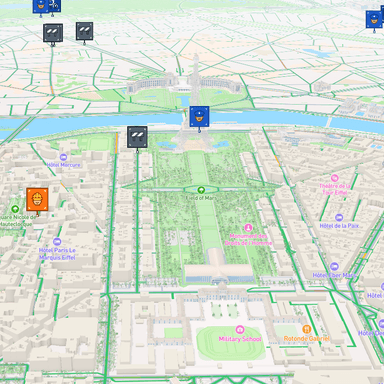
The browser's best trick isn't a movie. It's a co-driver.
Parked, the Tesla browser is a great second screen. Moving, almost nothing is built for it, which is the whole reason codriver exists. If you only add one thing to your Tesla's browser, make it the one that helps when the wheels are turning.
FAQ
Tesla owners ask
Can you use the Tesla browser while driving?
In regions where Tesla permits the browser while driving, yes. That is why a driver-friendly app like codriver can work on the car's screen. Most web apps still are not designed for that context: anything that needs reading or typing belongs to a parked screen. As of software update 2026.20, owners can also block the browser through parental controls.
Do you need Premium Connectivity for browser apps?
Usually. The Tesla browser needs an internet connection, and over cellular that means Tesla's Premium Connectivity subscription. On home or public Wi-Fi (or a phone hotspot) the browser works without it, which is handy while parked at a charger.
What happened to TeslaWaze and TeslaNav.com?
Both were community-built web apps that piped Waze-style alerts into the Tesla browser, and both went dark when Waze cut off the data they depended on. TeslaWaze stayed down; TeslaNav.com came back online in 2026 and is ranked on this list. codriver took the other lesson from those shutdowns: a platform-owned data layer fed by drivers and multiple feeds, so no single upstream can switch it off. See the TeslaWaze and TeslaNav.com comparisons for the detail.
What's the most useful Tesla browser app while actually driving?
Very few web apps are built for the moving screen; most are entertainment or productivity you'd only touch while parked. codriver is the exception on this list: it's designed for the drive, with one-tap interactions, a calm voice, and no typing, so it adds road context without pulling your eyes off the road.
Put the useful one on your Tesla screen.
Every feature free during the beta. No card needed.